This page contains instructions on managing and updating components on your website.
Instagram grid
Instagram Feed symbols consists of:
- Section
- Instagram Grid Wrapper
- Instagram Link Block
- Thumbnail
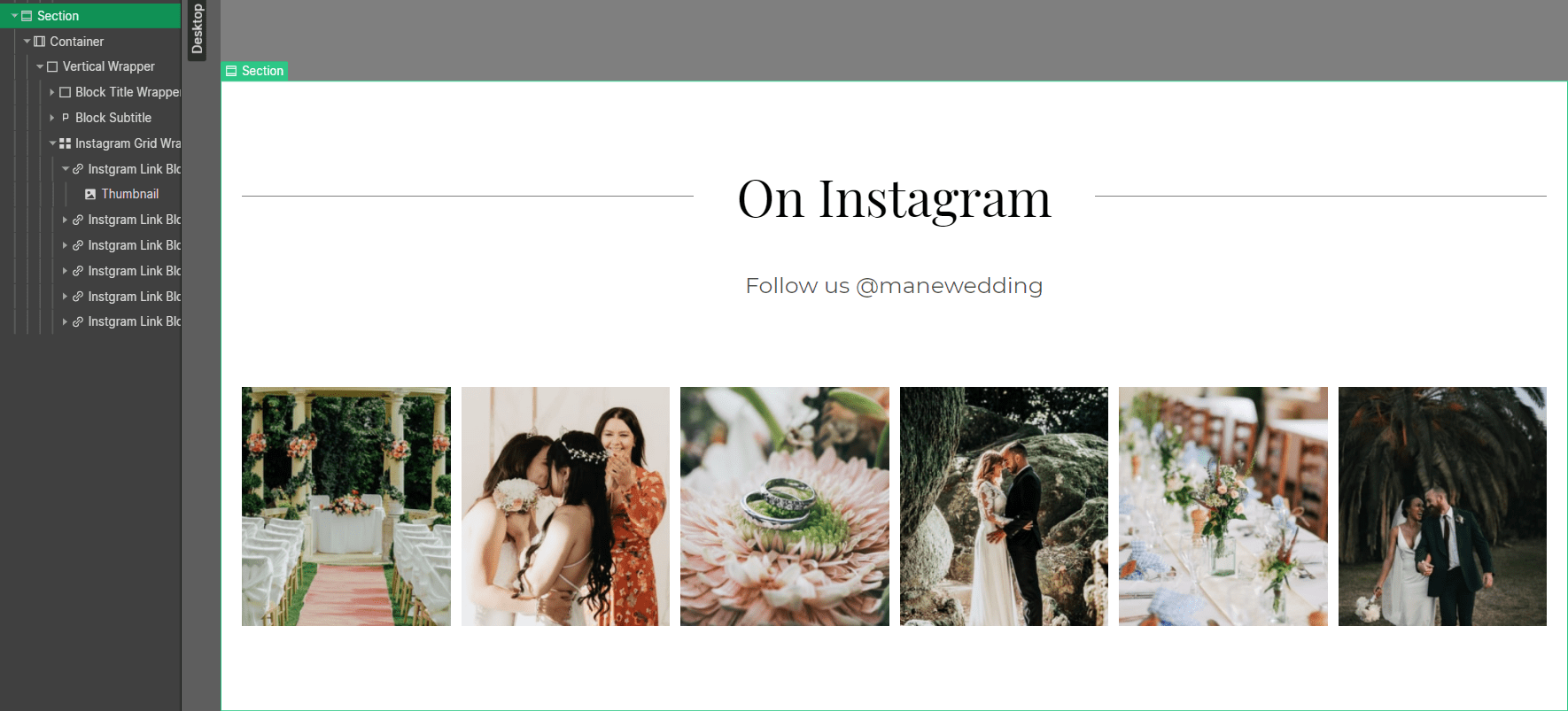
To adapt it to your brand, you will need to update the following:
- The links in each 'Instagram Link Block' element
- The images in each 'Thumbnail' element
Instructions
- With the Instagram Grid symbol selected, click the 'Edit main symbol' icon.
- To edit Instagram Feed item, click any of the images you want to update. With an image selected, click the gear icon and then click 'Replace image'. You can select an image from the assets panel or upload a new image from your computer.
- Don't forget to update the link to the image in Instagram that you have just updated. To do this, select an 'Instagram Link Block' parent element of the Thumbnail you want to update. Then click the gear icon to open the settings popup. Replace the link with an actual link to your image. Click exit.
- Repeat the process for the rest of the images and link blocks. When you finish, unselect the Symbol element or click 'Back to instance' button near the top left corner of your screen.
- Your changes to the symbol will be reflected throughout the website. Publish the website to see them on a live site.
There's the Instagram Grid symbol below on this page for your convenience, try editing it yourself.
If you need help with it, feel free to reach out for support.